Overview
You may have been assigned a test in TimeBack and you need to know how to take it, or you may have heard about AlphaTest (also known as MasteryTrack) and may be curious about how to use this app. Look no further! This article has you covered.
Important
- If you are a new student and don't know what to do about Placement tests, or you are an existing student and need to have a test assigned, please talk to your Guide or Contact Support for assistance.
- You can review your previous test scores here: https://www.masterytrack.ai/dashboard
Solution
Taking tests in AlphaTest is very easy!
1. You will see your test assigned in TimeBack near the top, along with important details like the exact name of the test, base XP value, subject, and grade.
- If you take too long to take an assigned test, your course may become blocked in TimeBack until you complete the test. It's important to take them as soon as possible!

2. Make sure you're ready and in an appropriate space where you can work on your test comfortably. Click on the Start Assessment button to launch the test.
3. Select Continue with Google and use your school email account to sign in.
4. Wait for the test to load, carefully read the Testing Guidelines, then scroll down and click Start Test once you're ready.
5. During the test, you will have some helpful buttons in the bar near the top (green arrow below); place your cursor over them without clicking to learn what they do. If there seems to be an issue with a question, you can also report this using the yellow bell icon (red arrow below).

6. It's often better to complete the test in one go, but if you need to interrupt the test, use the red Exit Test button near the top-right corner. Follow the instructions there; your progress will be saved.
7. After submitting the last question, you will have a chance to review your questions again and see if you missed answering any of them. Click on any question to go back and review it.
8. Click Submit Test when you're ready and follow the instructions on screen.
- If you get any errors while trying to submit your test, don't worry, your progress is safe! You can try again, or exit the test and then come back to try again. If nothing works, Contact Support for assistance.
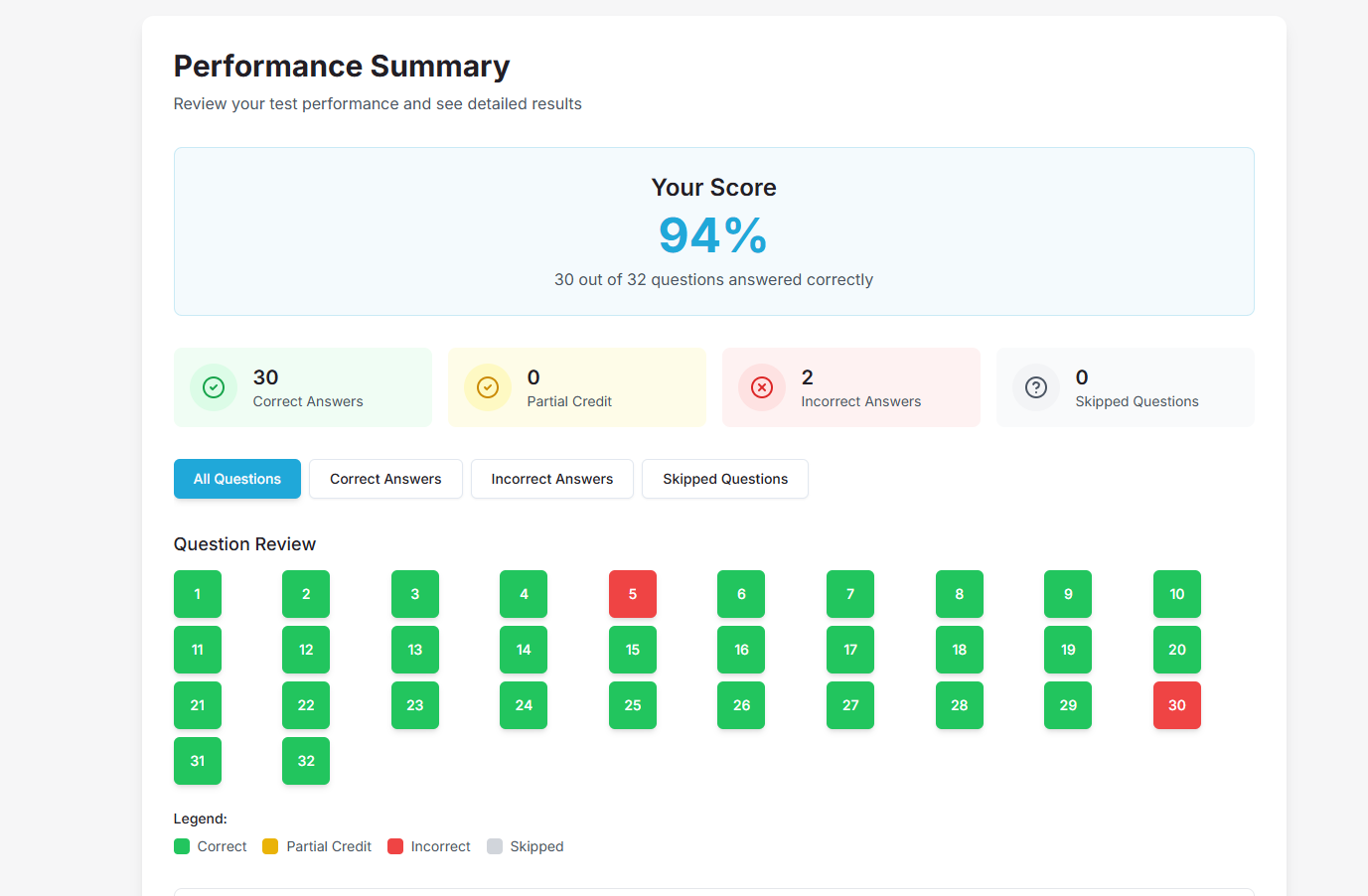
9. Except for Writing tests, your test will be graded in just a few moments and you'll see your score!
-
Writing tests are graded manually and may need up to 24 hours to display your score in MasteryTrack. You can consult your test scores here: https://www.masterytrack.ai/dashboard
FAQ
1. I submitted my test but there's no score, it wasn't graded, the test is stuck in test is stuck "Awaiting Evaluation." What do I do?
If it was a Writing test, it will take up to 24 hours for you to be able to see your final score. Check the next day here: https://www.masterytrack.ai/dashboard.
If the score is still not there after 24 hours, Contact Support for assistance.
2. I can't submit my test, there is an error. What do I do?
First of all, your progress is saved as you go, so don't worry, your efforts won't be wasted. Try again, and if it still doesn't work, exit the test first and then come back and try again. If you still have issues, Contact Support for assistance.
3. How can I see the correct answers for a test I submitted?
It's not possible to see the correct answers for the questions you got wrong. If you fail some questions in your test, you should receive some lessons later (usually, the next day) that will help you better understand the concept, so that you can realize on your own what was the correct question.
If you don't receive this and it's been 24 hours since you submitted the test, talk to your Guide or Contact Support for assistance.
Alonso Aguirre
Comments